Start with the symptom
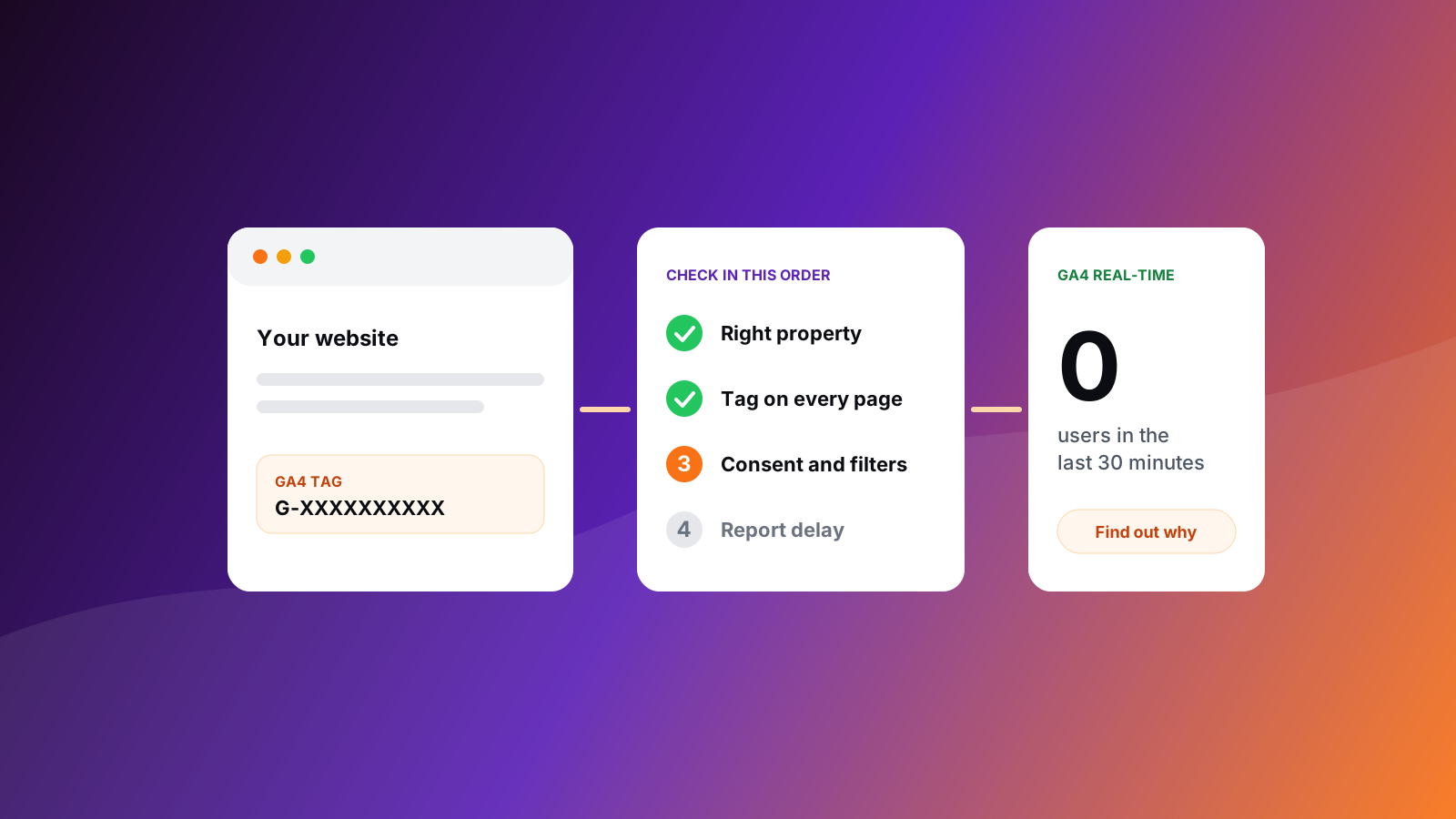
The cause depends on what you are seeing. Three symptoms cover almost every case, and each points to a different group of reasons in the list that follows.
- Nothing, ever. The tag never reached the property. Reasons 1 to 4 and 11.
- Data stopped on a date. Something changed on the site or in the container. Reasons 3, 4, 5 and 11.
- Real-time works, reports look empty. The data is arriving and the report is not ready or is filtered. Reasons 7, 8 and 12.
The 60-second triage
- Open your site in a private window, click through two pages, and watch GA4 Reports, then Real-time. A visit should appear within a minute.
- Open your browser's developer tools, switch to the Network tab and filter for
collect. Each page view should send a request to a Google Analytics address. - If you use Google Tag Manager, open Preview mode and load the page. The GA4 tag should show as "Fired".
If the request appears and Real-time stays empty, the tag is sending to a different property. If no request appears, the tag is not running. That one split removes half the list.
The 12 reasons
- The tag points at the wrong property. Compare the measurement ID in your tag (it starts with G-) with the one in Admin, Data streams. A copy-paste from an old or test property is the most common cause.
- The tag is missing from some pages. Templates, a thank-you page, the booking subdomain and landing-page builders each load their own head. Check the page where the data is missing, not just the homepage.
- The container is saved but not published. Changes made in a Tag Manager workspace go live only when you submit and publish a version. Check the version history for the last publish date.
- The trigger never fires. A GA4 configuration tag with no All Pages trigger, a trigger waiting on a consent state, or a condition that no longer matches after a redesign all produce silence.
- The consent banner holds analytics back. With analytics storage set to denied by default, tags wait for a choice or send only limited signals. Test the accepted, denied and default states on a clean browser profile.
- Ad blockers and privacy features trim the count. Some visitors will always be missing. This lowers totals; it does not produce zero. Compare against your booking system to size the gap.
- A traffic filter is hiding you. An internal-traffic or developer-traffic filter in the Active state removes matching visits for good. If you test from the office network, your own visits can vanish while real ones still arrive.
- You are looking at the wrong report or window. Real-time updates in seconds. Standard reports can take 24 to 48 hours to process. Check the date range, and look for a comparison or segment left switched on.
- The stream or property is not the one you are viewing. A web stream for one domain, an app stream, or a second property with a similar name will leave the one you opened empty.
- The journey crosses a domain. A booking tool on its own domain splits one visit in two and can label the return as a referral. Configure the domains in the stream's tag settings and add the booking domain to referral exclusions.
- A plugin or cache delays the script. Optimisers that defer or delay JavaScript can stop the tag from running before the visitor leaves. Exclude the analytics and Tag Manager scripts from delay rules.
- A new property or small audiences. A property created this week has little history, and reports apply data thresholds that hide rows when audiences are small. Wait for volume before judging the report.
Where a free scan helps
Reasons 1 to 5 and 11 leave evidence on the public page: the measurement ID, the container, the consent mechanics and the scripts that load. The free analytics scan reads those in seconds, shows which checks pass, warn or fail, and ranks the fixes by points recovered. Reasons 7 to 9 and 12 sit inside your GA4 property, so a look at its settings finishes the job.
For appointment businesses: confirm the events that pay
Page views prove the tag runs. Revenue depends on the events behind a booking. Once data flows, confirm that these appear in DebugView when you complete them yourself:
- The booking confirmation (a single event per booking, not one per page reload).
- The WhatsApp click.
- The enquiry form submit, with the source fields attached.
Mark the ones that matter as key events in GA4, so reports and ad platforms optimise toward appointments, not scrolls.